Stop People Peeking at Your Screen: The Complete Gaze Guard Guide
Use your webcam to detect when someone is peeking at your screen — flash a visual alert or quietly switch tabs. All processing is local; frames never leave your device.


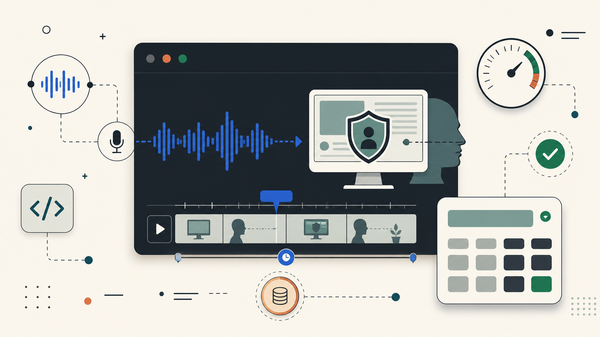
Use your laptop's webcam to detect when someone is peeking at your screen from behind or beside you. The moment it detects a watcher, it flashes a visual alert across the page — or quietly switches your tab to an innocent-looking "safe" screen.
Gaze Guard is a Chrome extension. At its core, MediaPipe FaceLandmarker (WASM) runs continuous face detection in the background at ~10 FPS, estimating each face's distance from the camera and its head orientation to decide whether "someone is looking at your screen."
All image analysis happens locally in your browser. Video frames and face data never leave your computer and are never uploaded to any server.
When it spots someone watching, you can have it flash a glow around the screen to warn you, or just switch straight to a safe tab you've set up — hiding whatever you were actually looking at. Installing takes a moment: open the store page, hit "Add to Chrome," and pin the eye icon to your toolbar. The rest of this guide walks you through it step by step.
How do I install Gaze Guard?
Install straight from the Chrome Web Store — no developer mode needed:
- Open the Gaze Guard listing.
- Click Add to Chrome, then Add extension to confirm.
- Once installed, click the puzzle-piece icon on the toolbar and pin Gaze Guard's eye icon there.
How do I start monitoring and grant camera access?
Click the eye icon in the toolbar to open the settings panel. On first open it's in the Idle state — the status dot is gray, the values show "—", and the top-right button reads Start.
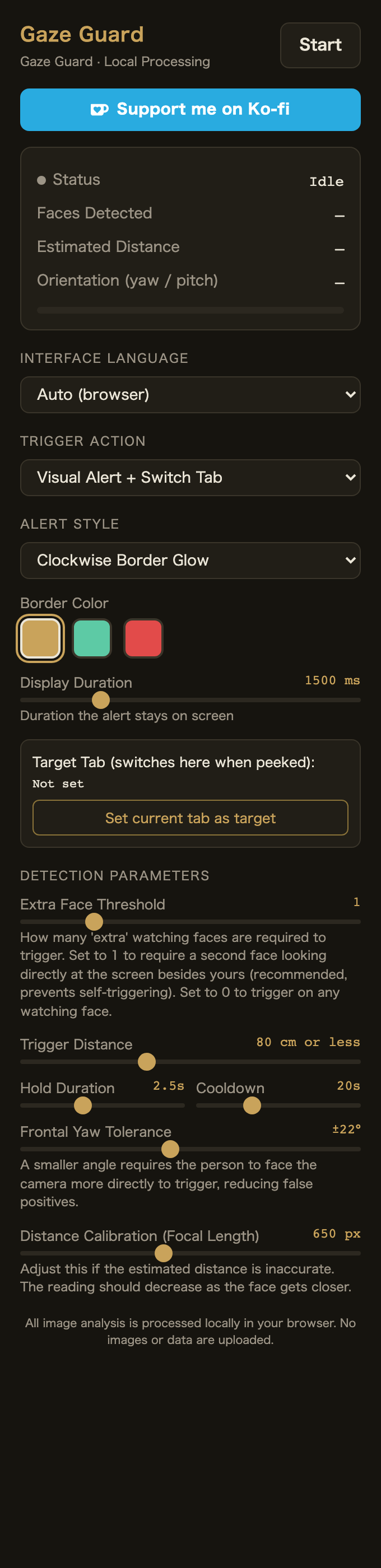
Click Start in the top-right. Because the offscreen background page can't raise the browser permission dialog itself, Gaze Guard opens a permission tab automatically:
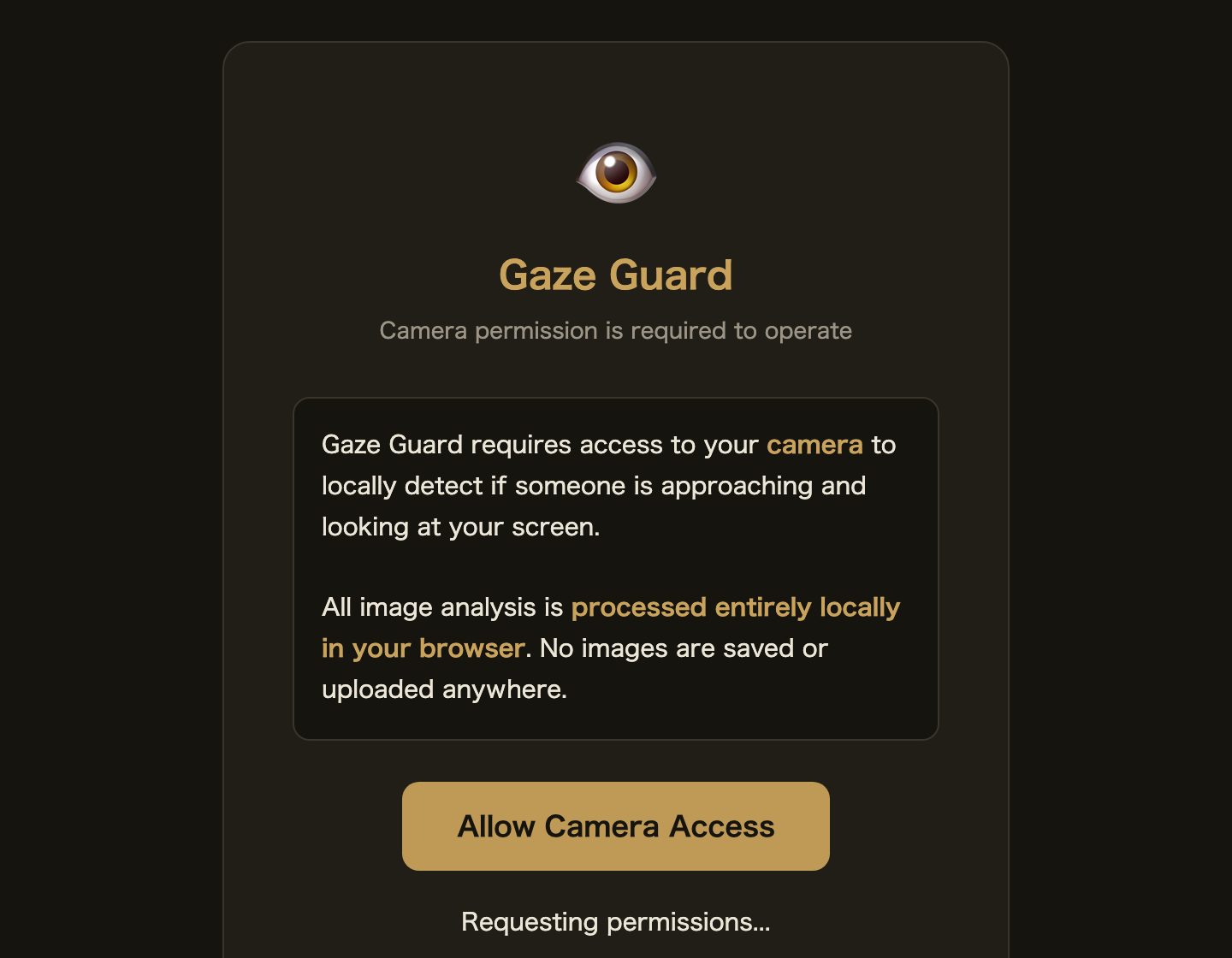
Click Allow Camera Access. Chrome shows "Allow Gaze Guard to use your camera?" at the top → click Allow. The tab closes itself once permission is granted.
Reopen the settings panel and the status turns to Monitoring: a green dot, plus live readouts of detected face count, estimated distance, and head orientation.
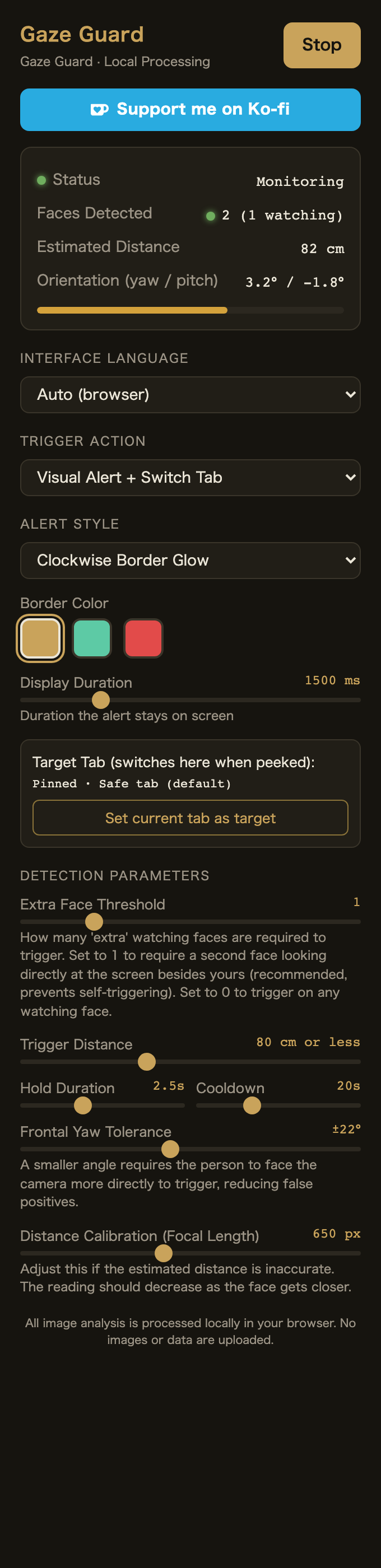
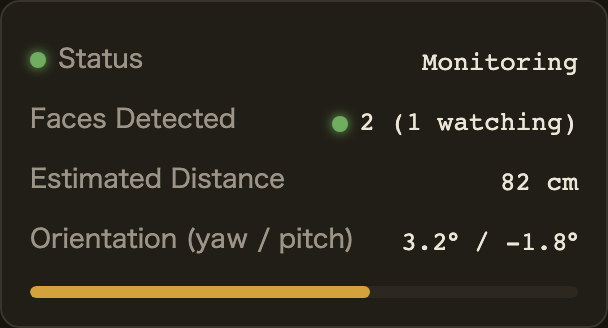
The three values in the status box update in real time — handy for confirming detection is working:
| Field | Meaning |
|---|---|
| Faces Detected | Number of faces currently in frame; the value in parentheses is how many are "watching" (facing you) |
| Estimated Distance | Estimated centimeters from the nearest face to the camera (via a pinhole-camera model) |
| Orientation (yaw / pitch) | Head left/right and up/down tilt; closer to 0 means more directly facing the camera |
What is the "target tab" and how do I set it?
The target tab is the safe screen Gaze Guard jumps to when you're being watched — usually a document, a blank search page, anything that looks ordinary.
- First, open the tab you want as your safe screen.
- While that safe tab is active, click the Gaze Guard icon to open the panel (it captures the current tab).
- Click Set current tab as target. The text below the button changes from "Not set" to that tab's title or URL.
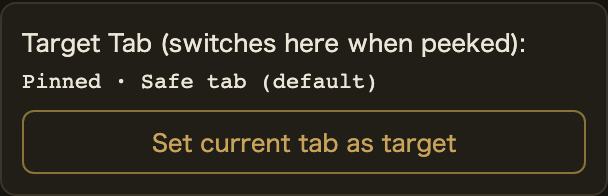
What trigger actions and alert styles are there?
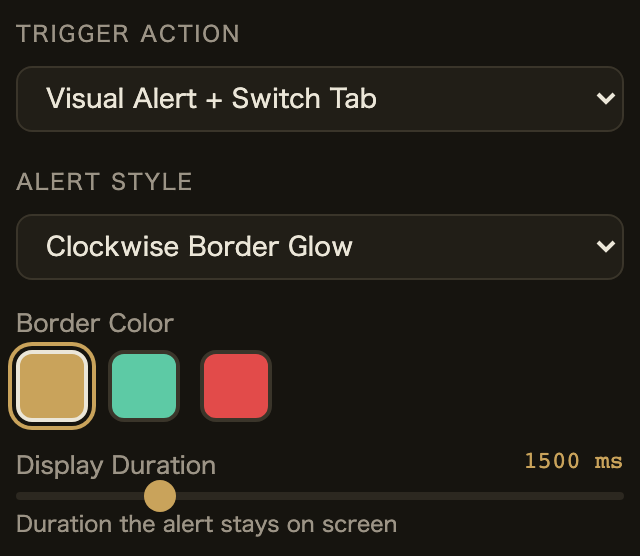
Trigger Action
| Option | Behavior |
|---|---|
| Visual Alert + Switch Tab (default) | Plays the alert animation on the current page, then jumps to the target tab |
| Visual Alert Only | Plays the animation only; no tab switch |
| Switch Tab Only | No animation; switches away silently |
Alert Style
| Option | Visual |
|---|---|
| Clockwise Border Glow | A glowing border sweeps clockwise around the whole window edge |
| Mark Face Position | A warning banner appears at the top and a circle marks each detected face |
Border / Marker Color
Three swatches: gold, teal, red. The selected one gets a white outline.
Display Duration
How long the alert animation stays on screen, from 500 to 5000 ms (default 1500 ms). Larger means longer on screen.
How do I tune the detection parameters?
This section decides what actually counts as "someone peeking." The defaults work for most people, but understanding each parameter lets you tune it for your environment.
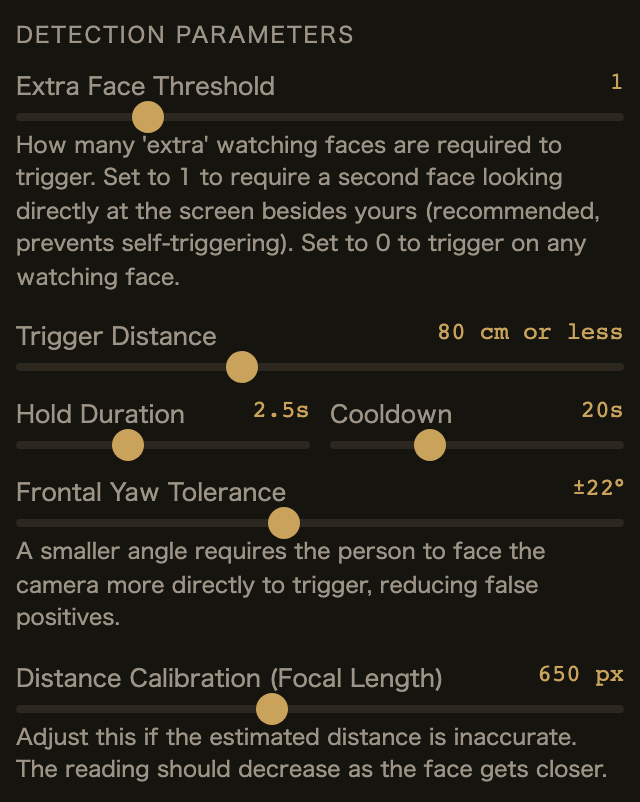
Extra Face Threshold (most important)
Range 0–5, default 1. How many "watching" faces — beyond your own — are required to trigger.
| Setting | Behavior | When to use |
|---|---|---|
| 1 (recommended) | Besides your own face, a second face must be facing you up close | Normal single-user use; you looking at the camera won't false-trigger |
| 0 | Any watching face triggers (including your own) | When your face shouldn't be in front of the screen (testing) |
| 2 | Requires 3 faces at once | Crowded office environments |
Trigger Distance
Range 40–150 cm, default 80 cm. Only faces within this distance are counted.
- Lower (e.g. 50 cm): only very close people trigger it.
- Higher (e.g. 120 cm): more distant people trigger it too.
Hold Duration / Cooldown
- Hold Duration (0.5–6 s, default 2.5 s): how long someone must stare continuously before it triggers. Longer is harder to false-trigger but slower to react.
- Cooldown (1–60 s, default 20 s): after one trigger, no re-trigger during this window — prevents alert spam.
Frontal Yaw Tolerance
Range ±8° to ±40°, default ±22°. The angular tolerance for counting a face as "watching."
- Smaller: the person must face the camera almost head-on; fewer false positives but harder to trigger.
- Larger: even a slight side-profile triggers.
Distance Calibration (Focal Length)
Range 400–1000 px, default 650. Distance is estimated with a pinhole-camera model: distance = (9.0 cm × focal length) / inter-eye pixels. If the estimated distance is clearly off from reality, adjust this to calibrate — the reading should decrease as a face gets closer.
Just leave the detection rate at 10 FPS. Measurements show the power savings from lowering FPS are minimal, so there's no reason to change it.
What happens when someone is peeking?
Once configured, close the panel and have another person step in front of the camera, within ~80 cm, facing your screen for about 2.5 seconds.
Clockwise Border Glow — a gold band of light lights up the window edge and sweeps clockwise:
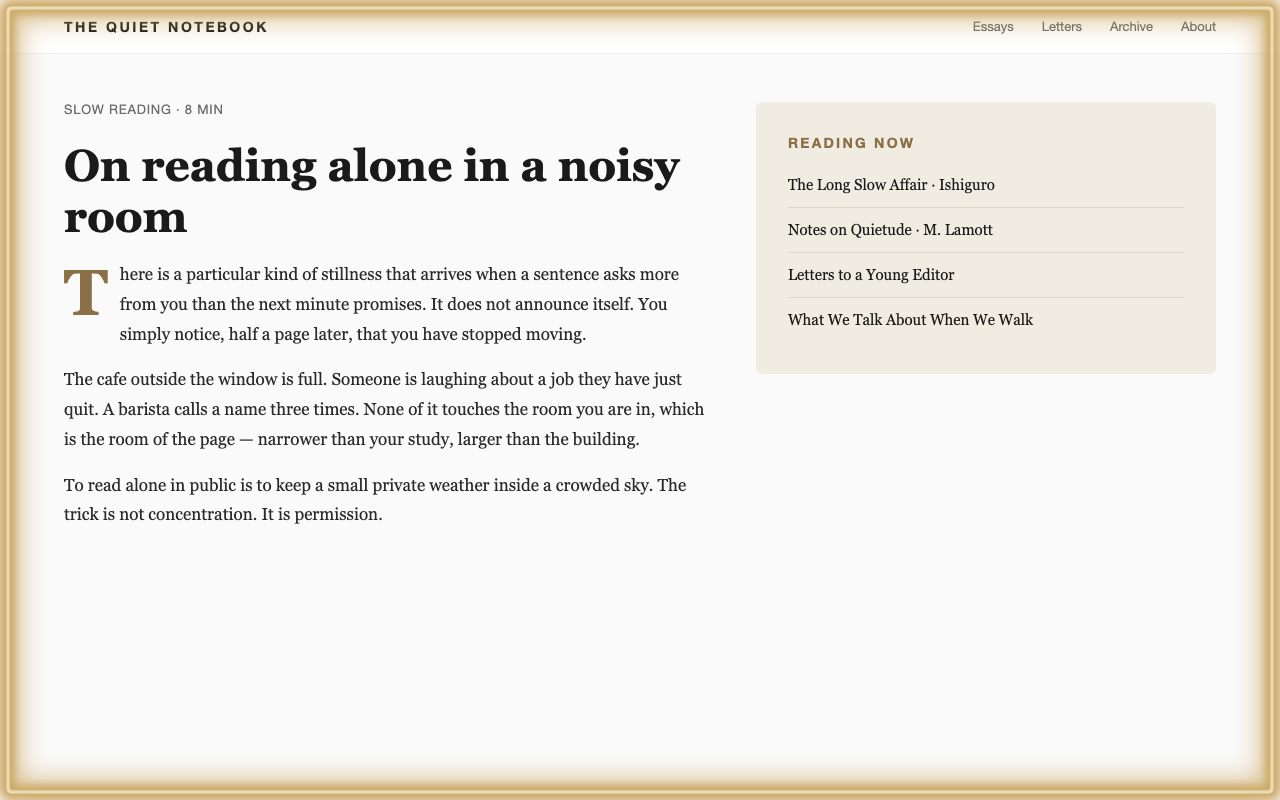
Mark Face Position — a warning banner pops up at the top and a circle marks the watcher's face:
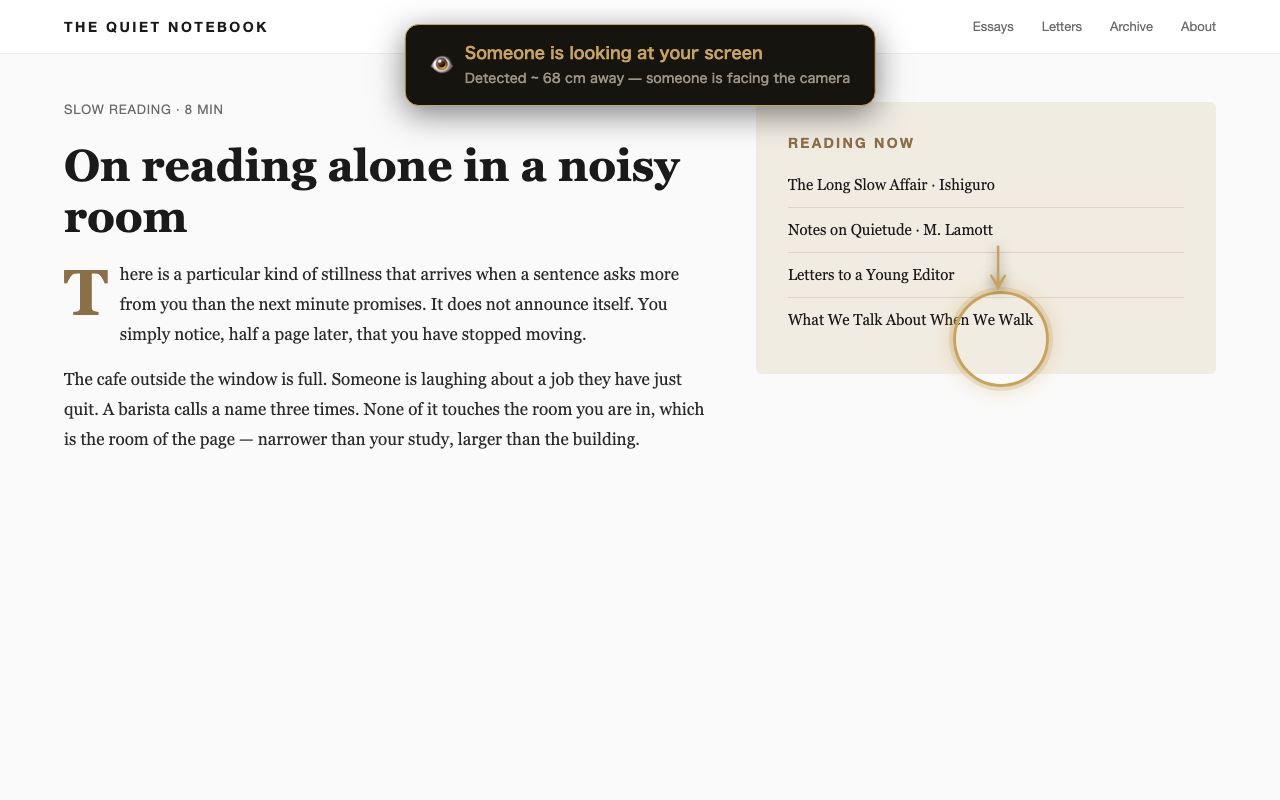
If your action mode includes "Switch Tab," the browser jumps to your target tab once the animation ends. After a trigger it enters the cooldown window (no re-trigger for 20 s by default).
How do I stop monitoring?
Open the panel; while monitoring, the top-right button reads Stop. Click it to end: the dot goes dark, status returns to "Idle," the three values reset to "—", and the button returns to "Start."
Can I switch the interface language?
Yes. The Interface Language dropdown at the top of the panel switches instantly — no reload needed. Supported:
- Auto (follows the browser language)
- 繁體中文 / 简体中文 / English / 日本語 / 한국어 / Français / Deutsch / Español
FAQ
Does Gaze Guard upload my video or face data? No. All image analysis runs locally in your browser via MediaPipe and is discarded immediately — nothing is stored or uploaded to any server.
Is Gaze Guard free? Yes, it's free to install and use.
Which browsers are supported? Chrome, and Chromium-based browsers that support Chrome extensions (Edge, Brave, etc.).
Why doesn't looking at my own camera false-trigger it? The default "Extra Face Threshold" is 1, meaning a second face — beyond your own — must be facing you up close before it triggers.
Does Gaze Guard drain the battery? Monitoring adds about 277 mW versus off — roughly 12–17 minutes of laptop battery life (~2.8%). See the measured power results.
中文版:防止別人偷看螢幕:Gaze Guard 完整教學 GitHub: steepinglogic/gaze-guard